Activating License Keys
Some Smartpoint components require additional provisioning and a license key to be successfully installed:
Note: Smartpoint Rail was retired on April 30, 2024. The European Rail plugin has replaced Smartpoint Rail.
To enter a license key:
- If you previously entered a license key, you do not need to enter the license key again when upgrading to . The installation automatically uses the key from your previous version.
- If you are new to Smartpoint and provisioned for one or more of these components, you will receive a license key from Travelport.
- You are an existing Smartpoint customer, but your agency is newly provisioned for one or more of these components, you will receive a license key from Travelport.
Tips!
- If your agency is NOT provisioned for Trip Quote Plus or PNR Assist, you do not need to enter a license key to use Smartpoint.
- Agencies can request provisioning for Trip Quote Plus through their Travelport account manager.
To activate the license key:
- Install Smartpoint.
- Launch Smartpoint.
- In the terminal screen, enter #ACTIVATE-LICENSE-KEY to display the Smartpoint Component Activation dialog box.
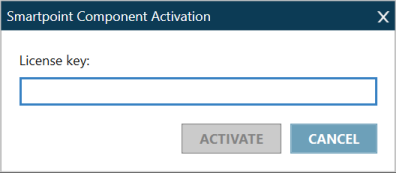
- In License key, enter the key provided your agency’s Travelport Administrator.
- The license key is 32 alphabetic and numeric characters.
- If you are provisioned for more than one component, the same license key activates all components.
For example:
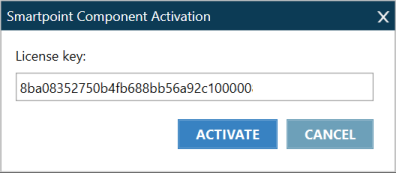
- Click ACTIVATE to display the confirmation message.
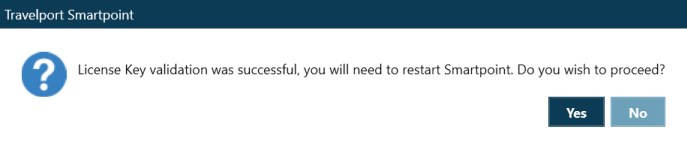
- Select the desired restart option:
- If you click Yes, Smartpoint restarts automatically to enable the provisioned components.
- If you click No, Smartpoint does not restart. The provisioned components are not enabled until you restart Smartpoint.
For more information, see the online help for each component: Trip Quote Plus and PNR Assist.